
Installation & Configuration
Texturge Beta is a text animation engine plugin for Unreal Engine 5.6+. This guide walks you through installation, enabling, and project configuration.
Installing the Plugin
Applies to: first-time installation of Texturge into a UE5 project.
Install from a Local Folder
-
Copy the
Texturgeplugin folder into your project’sPlugins/directory (create it manually if it does not exist) -
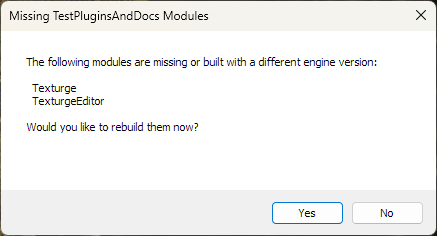
Launch the project — UE5 detects the new plugin and prompts you to select Yes to compile it
-
After compilation, open Edit > Plugins and search for “Texturge”
-
Confirm the Texturge plugin is enabled
-
Restart the editor for the plugin to take full effect
Install from the Fab Marketplace
-
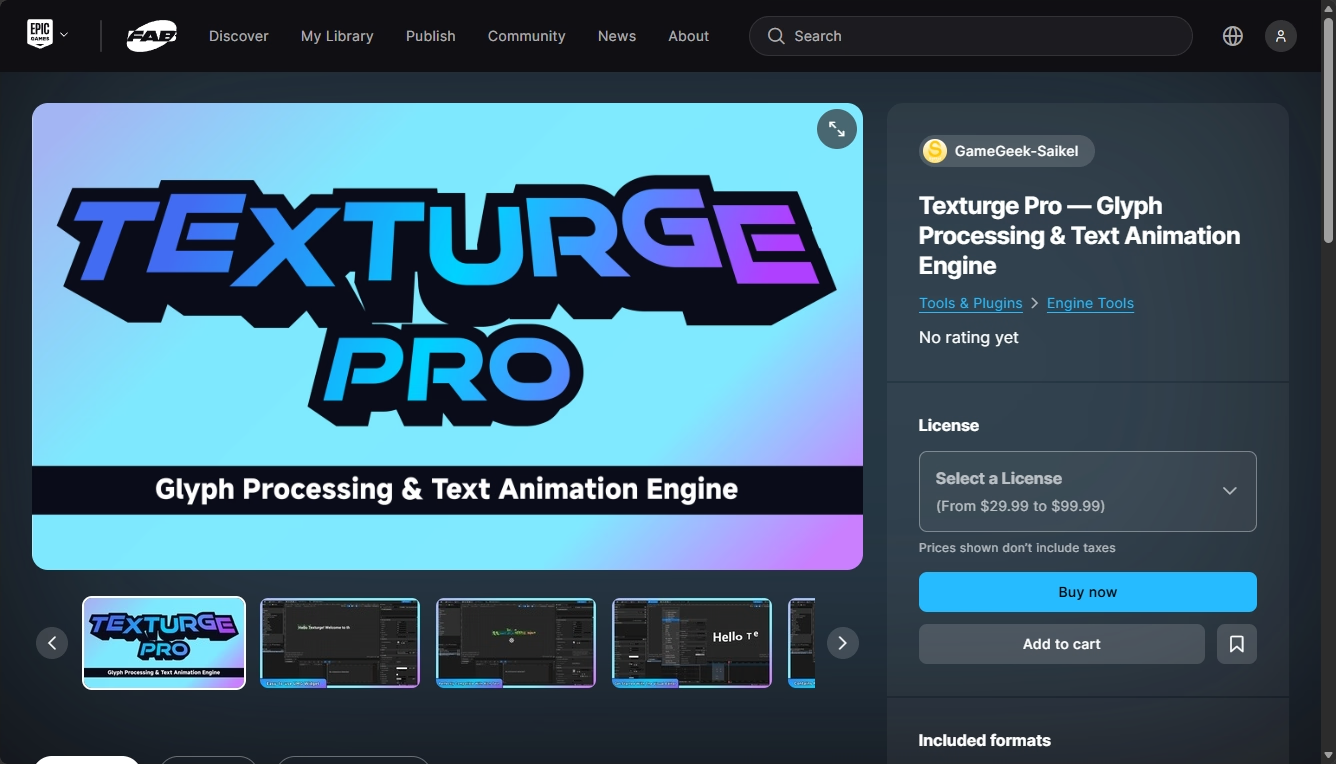
Search for “Texturge” on the Fab marketplace
-
Add the plugin to your Epic Games account library
-
Install to the target engine version via the Epic Games Launcher
-
Enable the plugin under Edit > Plugins in your project
NOTE
Supported platforms: Win64 / Mac / Linux. No additional dependency modules.
Enabling the Plugin
Applies to: activating the plugin in the Plugin Manager after installation.
-
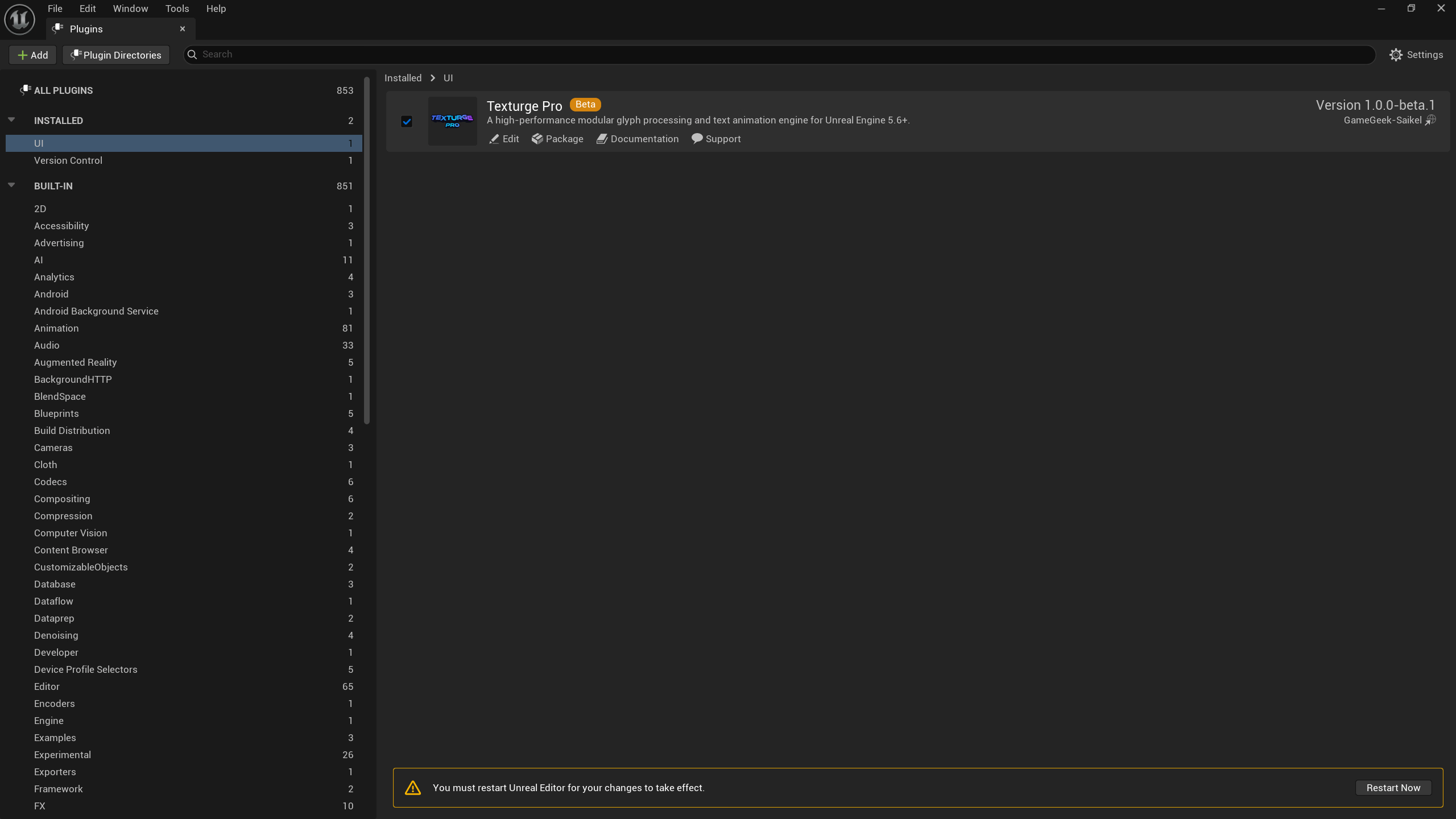
Open Edit > Plugins
-
Search for “Texturge”
-
Check the Texturge checkbox
-
Click Restart Now at the bottom right to restart the editor
IMPORTANT
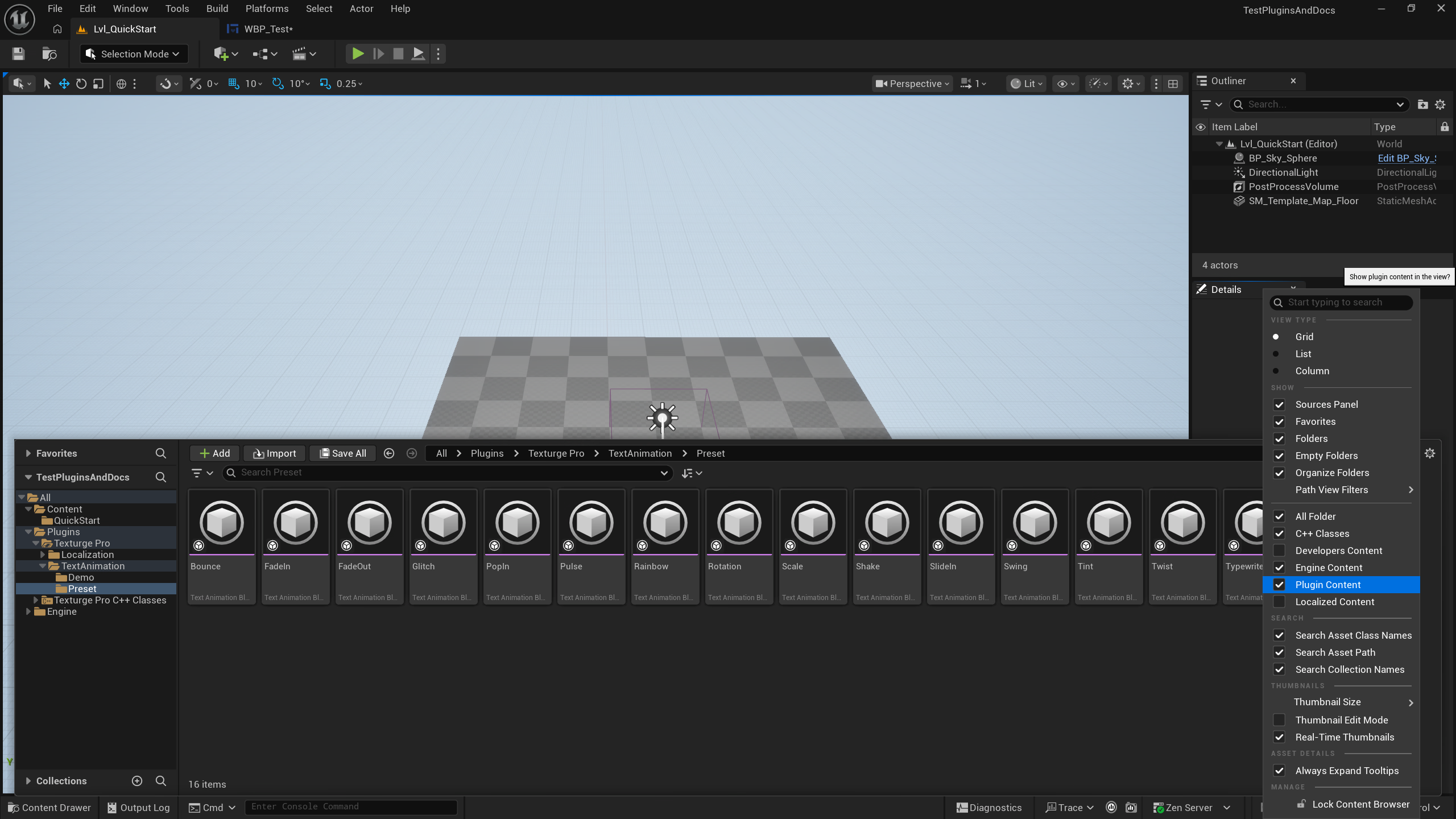
Enable “Show Plugin Content”: by default the Content Browser does not display plugin assets. After enabling the plugin, open the Settings menu at the top left of the Content Browser and check Show Plugin Content to find plugin assets such as presets and demos under
Plugins/Texturge/Content/(e.g. the 16 preset animation blueprints underTextAnimation/Preset/). Otherwise plugin assets stay invisible and the plugin may be mistaken for “missing presets”.
Project Settings
Applies to: configuring Texturge’s global defaults.
- Open Edit > Project Settings > Plugins > Texturge
- Access current configuration via
UTexturgeSettings::Get()— there are no configuration items yet; all configuration is handled through animation assets and Blueprint variables
C++ Module Dependency
Applies to: Build.cs configuration required when referencing Texturge types from C++ code.
PublicDependencyModuleNames.AddRange(new string[] {
    "Core", "CoreUObject", "Engine",
    "Texturge"
});
NOTE
The module is named
"Texturge"(not"TexturgeRuntime").TexturgeEditoris for editor code only (editor tool classes/modules) and is not included in runtime builds.
Verifying the Installation
Applies to: confirming the plugin works correctly after installation.
Verify in UMG
-
Right-click in the Content Browser > User Interface > Widget Blueprint to create a widget
-
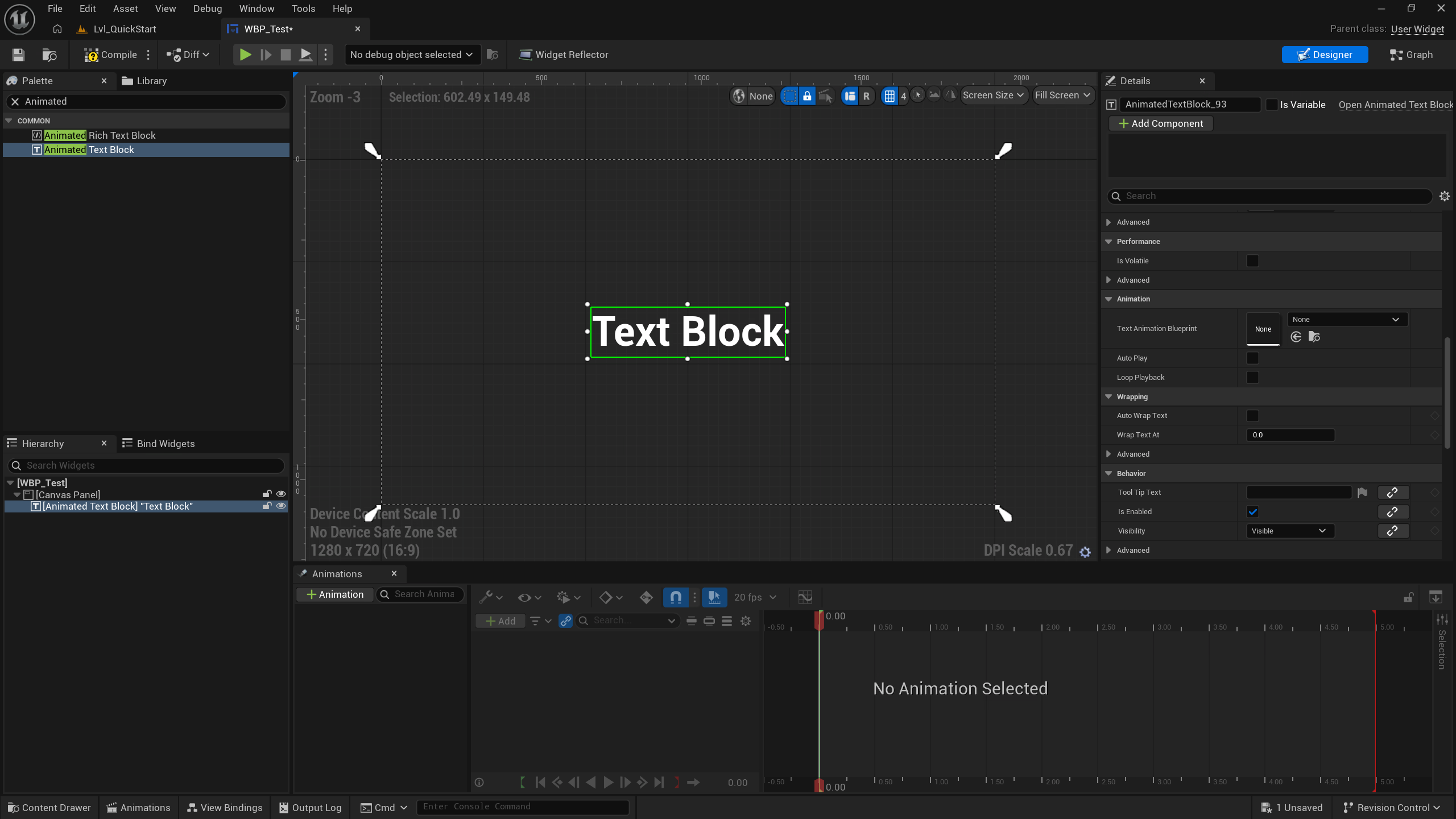
Open the Widget Designer and search for Animated Text Block in the Palette
-
Drag the Animated Text Block widget (
UAnimatedTextBlock) onto the canvas -
In the Details panel confirm the Text Animation Blueprint and Instance Parameter Overrides properties exist
-
Compile and save the widget
Verify in a Level (Alternative)
- Create a test level and open the Level Blueprint
Event BeginPlay→Create Widget(specify a Widget Blueprint containing the Animated Text Block widget) →Add to Viewport- Call the
Playnode - Run PIE (
Alt+P) and confirm the per-glyph text animation plays
TIP
If Animated Text Block cannot be found in the designer Palette, confirm the Texturge plugin is enabled and restart the editor. If compilation fails, check the project engine version (requires UE 5.6+) and the Build.cs module dependencies.